01What the Telegram bot does
Pocket Option describes a Telegram tool that delivers trading signals and supports manual approval or automatic execution. Its published walkthrough includes demo and real-account selection, trade size, payout filters, simultaneous-position limits and stopping controls. Availability and the interface can change; check the controls actually offered in your account. A trading signal is a suggestion produced by a system, not knowledge of a future price. Automating a decision makes it faster to repeat, including when that decision is wrong.
02Open the bot from a verified route
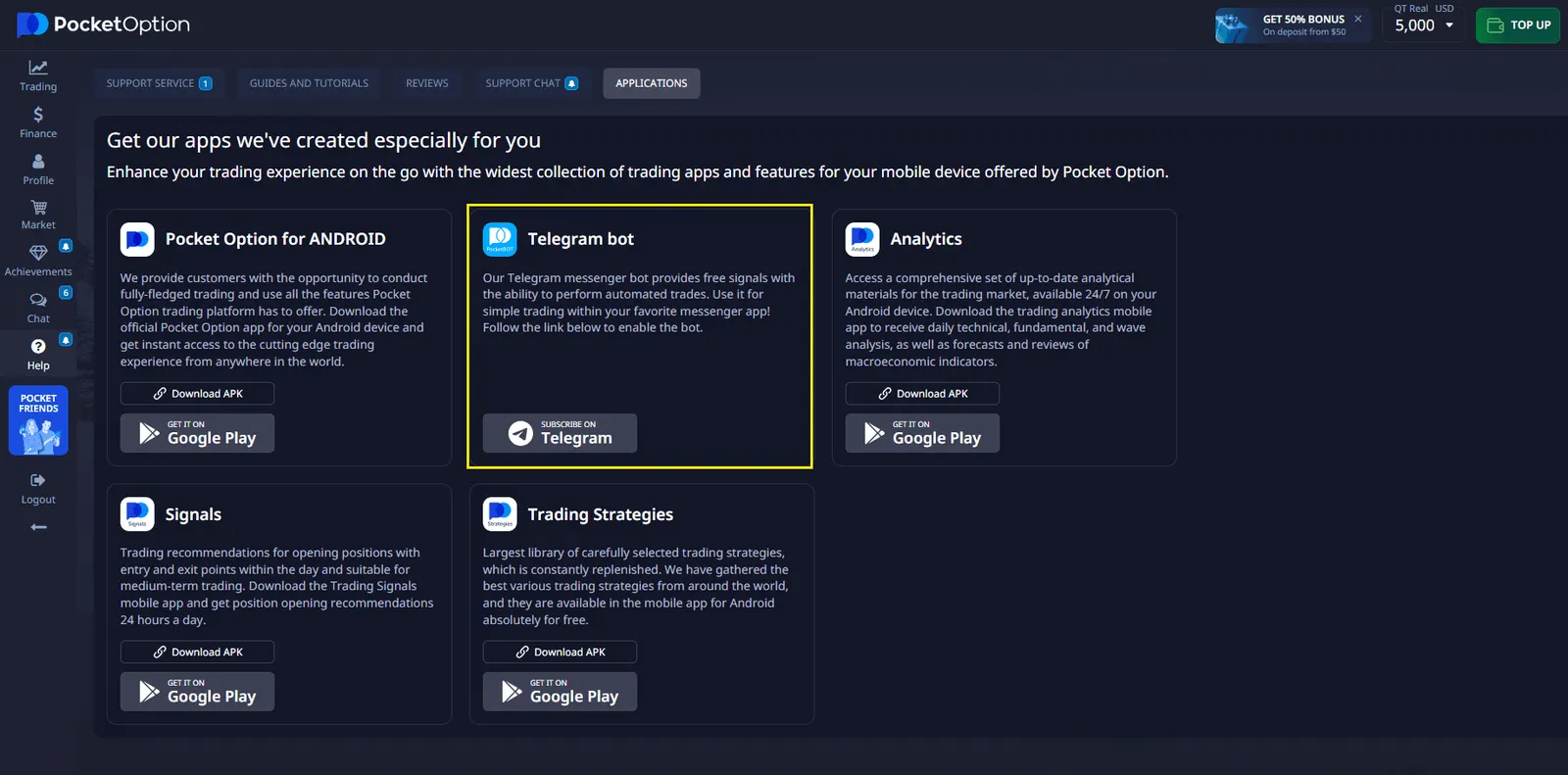
Use the Telegram bot button on this page or locate the bot through your Pocket Option account. The publisher documents access through Help and Applications, or a prompt in the Signals area. This website provides affiliate links and does not operate the bot. Before continuing, inspect the destination and confirm it matches the service shown inside your account. Search results, forwarded messages and similar-looking usernames are not sufficient proof of identity.
03Connect Telegram and review authorization
Open the verified bot in Telegram and follow its Start and account-linking prompts. Read the authorization screen before accepting it. Identify which account is being connected and whether the permission allows execution rather than notifications alone. Never send your password, recovery phrase, payment-card details or one-time login code to someone offering setup assistance in a chat. If the workflow looks unfamiliar, stop and verify it through the platform support channel. This website never needs your trading-account credentials.
04Choose between alerts and automatic execution
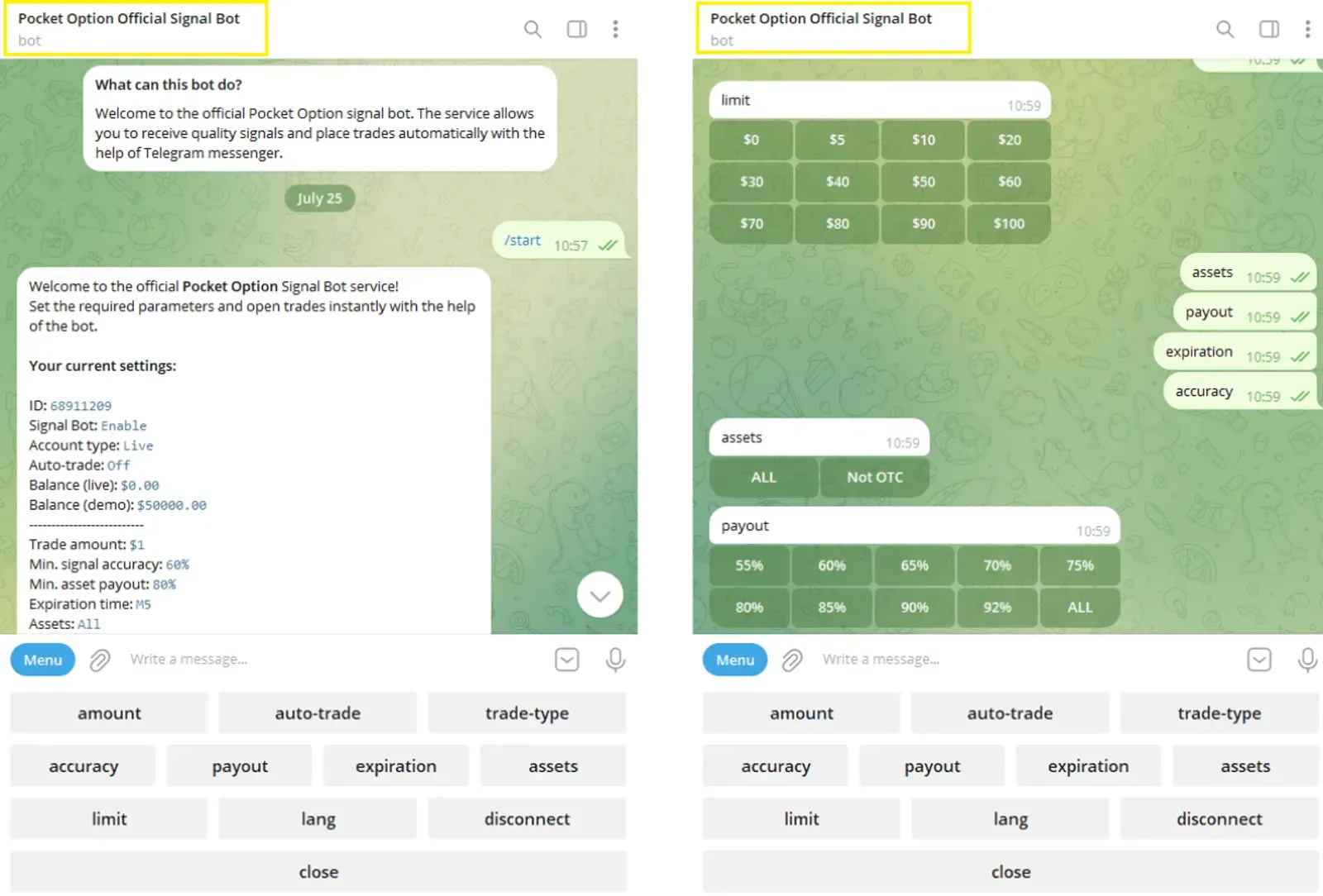
Manual approval gives you an opportunity to inspect a signal before authorizing an order. Automatic execution can place orders when its configured conditions are met without a separate decision for each trade. Decide which behavior you intend before enabling anything. A Telegram notification is not proof that an order was accepted or completed: use the account transaction history to check execution. If you are unsure which mode is active, pause activity and review the settings rather than testing with real money.
05Set trade size and exposure limits
Write down the maximum amount you are willing to lose before choosing settings. Consider the combined exposure of all open positions, not just the size of a single order. For example, several small positions can still add up to a large commitment. A payout filter describes an offered payout condition; it does not measure the probability of winning. Avoid automatically increasing trade size to recover losses. No configuration turns uncertain trades into guaranteed income, and a stopping rule should never be treated as insurance.

06Run a structured demo test
Use the demo account to learn the workflow before considering live execution. Confirm that both the bot and the platform show the same account mode. Test one setting change at a time and record the date, asset, mode, proposed action and observed result. Include losing trades and quiet periods in your notes. Test the pause control as well as the start control. Demo performance helps you understand behavior, but it cannot establish what you will earn or how a future real-money session will perform.
07Check signals against the trading terminal
The publisher shows a Signals area with timeframes, assets and directional indicators. Treat those displays as inputs to review, not an independent guarantee of reliability. Check the timestamp and whether the signal is still relevant when you receive it. Delayed notifications, market movement and changed execution conditions can make an old alert unsuitable. Do not repeatedly submit the same action because a Telegram message appears slow. First look for the original order in the platform history.
08Pause, disconnect and respond to problems
Know how to stop automatic activity before you start it. Use the available pause or automatic-trading control, verify the resulting state in the platform and review any open positions separately. Closing Telegram or muting notifications may not stop a service that runs elsewhere. If you want to remove access, review the account connection and authorization settings and use the supported disconnect process. Contact platform support if the status is unclear. Keep a record of relevant timestamps and order identifiers without sharing passwords.
09Troubleshooting common issues
If the bot does not open, check whether Telegram is installed or whether its web interface is available on your device. If account linking fails, confirm you are using the intended account and the current verified bot route. Missing signals may reflect filters, account availability, connectivity or a quiet period; do not loosen every limit simply to force activity. If a trade appears duplicated or unexpected, pause automation and compare the bot messages with the account history before attempting another action.
10Costs, country availability and account safety
Confirm any current fees, eligibility conditions and trading terms directly with the provider. An affiliate link is not a promise that the service is available where you live. Do not use a different regional link to bypass restrictions. Trading can result in loss of the funds committed, and automation can produce multiple losses quickly. Keep Telegram and your account secured, review active sessions and be cautious of anyone selling a guaranteed-success bot or asking for remote access to your device.
11Before starting a real-money session
Review the account mode, trade size, position limits and stop conditions again. Define when you will review activity and how you will react to a lost connection or unexpected order. Use only funds you can afford to lose. A successful demo test does not remove market risk, and there is no obligation to move beyond a demo. If you cannot explain the bot permissions and stopping procedure in your own words, continue learning before enabling live automation.
At a glance
| Guide | What it means | What to check |
|---|---|---|
| Signal alert | A proposed trading action | Timestamp, asset and conditions |
| Manual approval | You decide whether to act | Order details before approval |
| Automatic execution | Configured rules can trigger orders | Permissions, total exposure and stopping controls |
| Demo mode | Practice with virtual funds | Account mode and transaction history |
 Open Telegram bot


 iPhone / iPad